
文档预览
分段预览 解决的是「这次回答引用了哪几段」,视角停在分段上。要核对版式、盖章页、表格数字或者扫描件时,分段文本不够用:原文里的表格会被压成一行行文字,图片和印章根本不在分段里。本章补上文档预览:在分段预览界面点一下文档名称或「预览全文」按钮,新标签页打开一个独立的文档预览页,按文件类型把文档全文渲染出来,并可就地下载原文件。
「能支持预览的文档全部支持」是本章的目标:PDF、图片、Word、Excel、CSV、纯文本、Markdown、HTML、ZIP 都在覆盖范围内,解析不了的类型也不会给一个空白页面,而是明确提示「下载后查看」。预览页不需要登录:地址本身就是访问凭据,分享链接里的访客、没有账号的同事都能直接打开。
一、入口与效果
一次问答结束后,回答下方「知识来源」里的每张文档卡片都可以点开分段预览,卡片上的文档名只是标题,不改变卡片的点击行为:
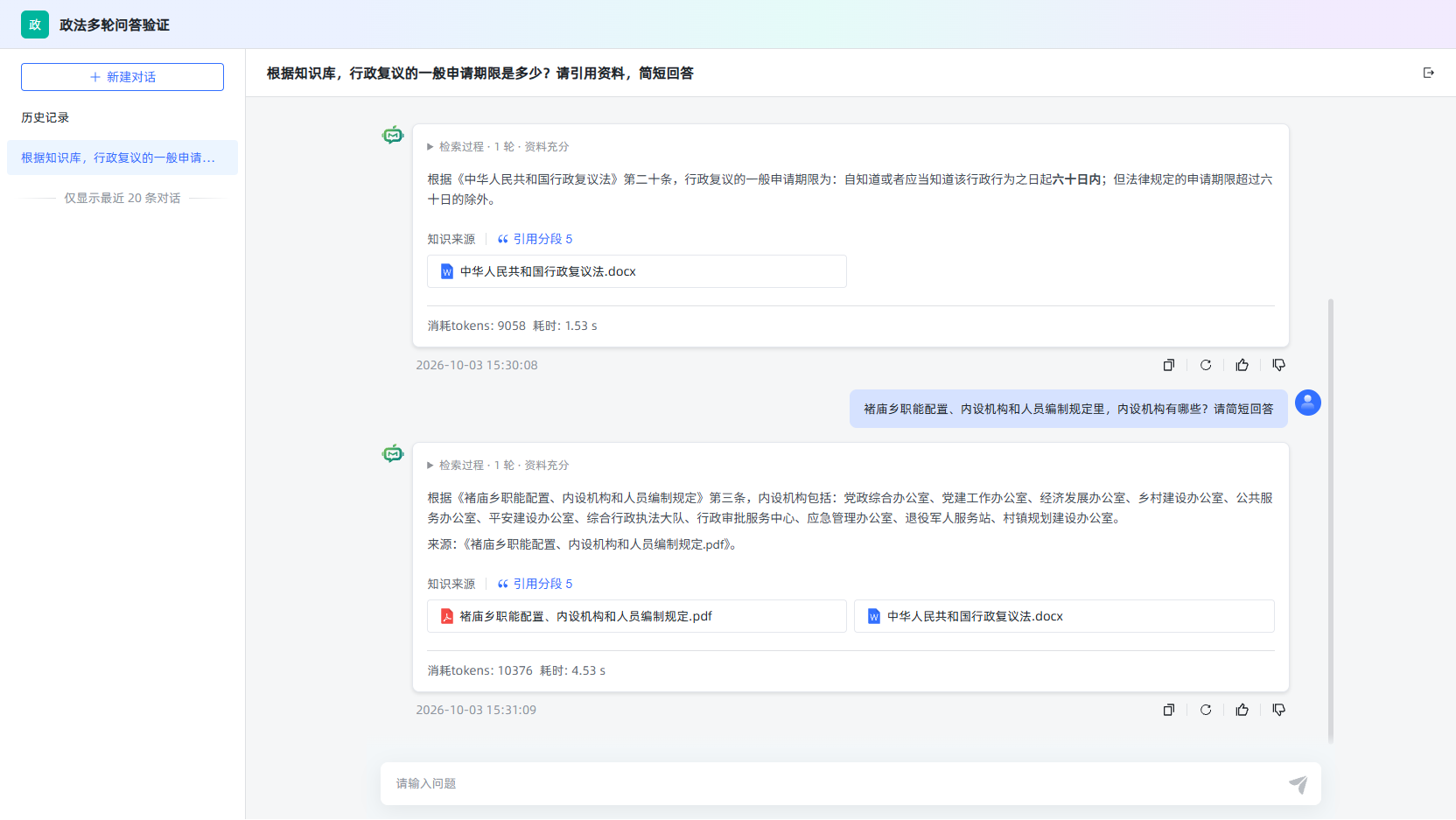
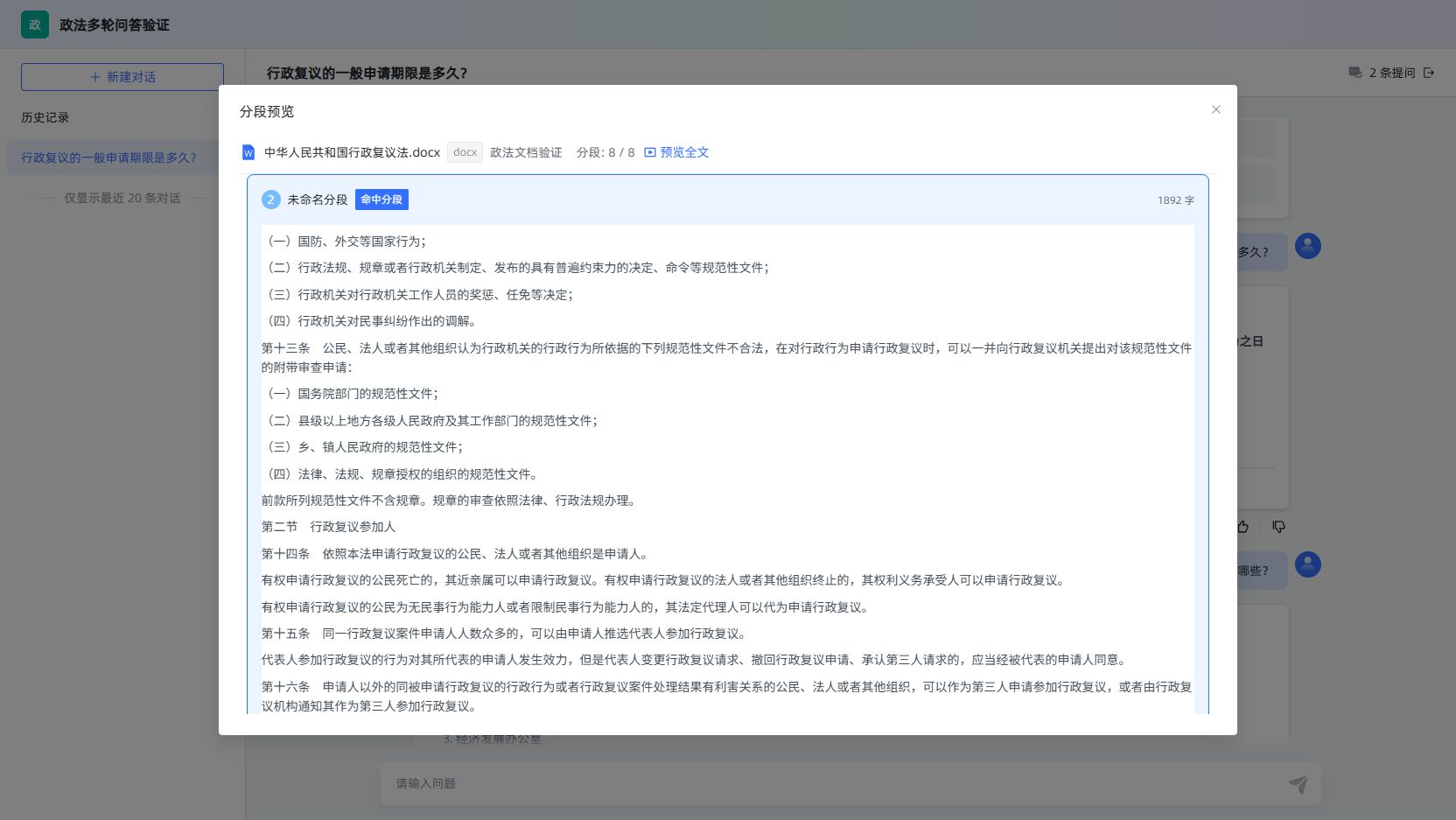
分段预览窗口的头部就是全文入口:文档名称可点击,右侧还有一个「预览全文」按钮,两者都在新标签页打开文档预览页:
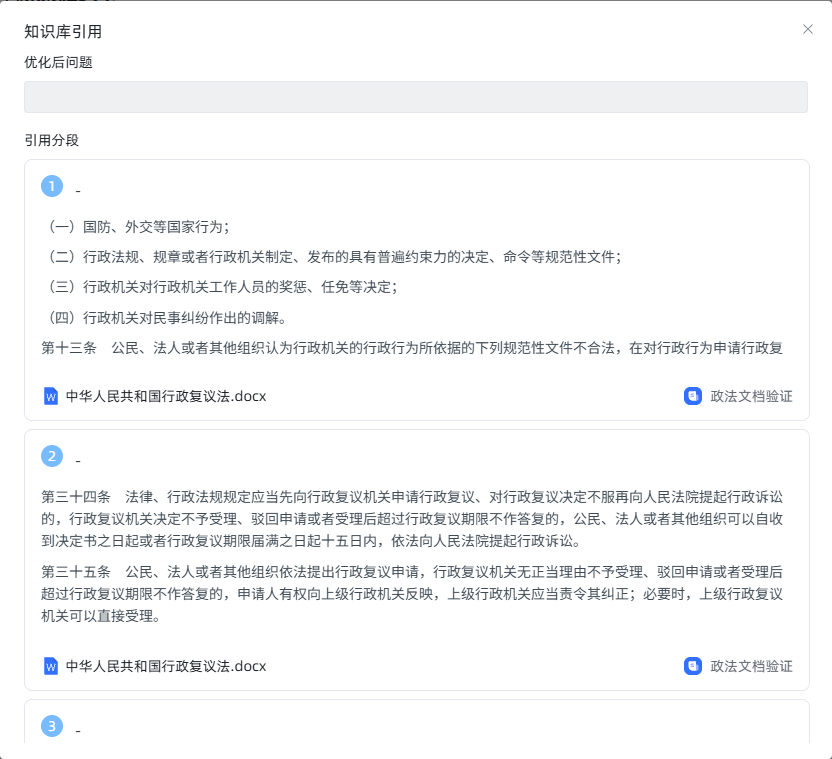
第三个入口在「知识库引用」弹窗(回答下方的「引用分段」按钮)里,每张引用分段卡片底部的文档名称同样可以点击:
回答 → 引用分段 → 知识库引用弹窗 → 点分段卡片上的文档名称 → 新标签页打开文档预览每张引用分段卡片底部的文档名称就是入口:
为什么用新标签页而不是弹窗:核对原文往往要来回对照,预览页可以长时间停在一边,不占用、也不打断正在进行的分段预览;浏览器自己的前进后退、打印、PDF 缩放与搜索都能直接用,地址栏里的链接还能直接发给同事。
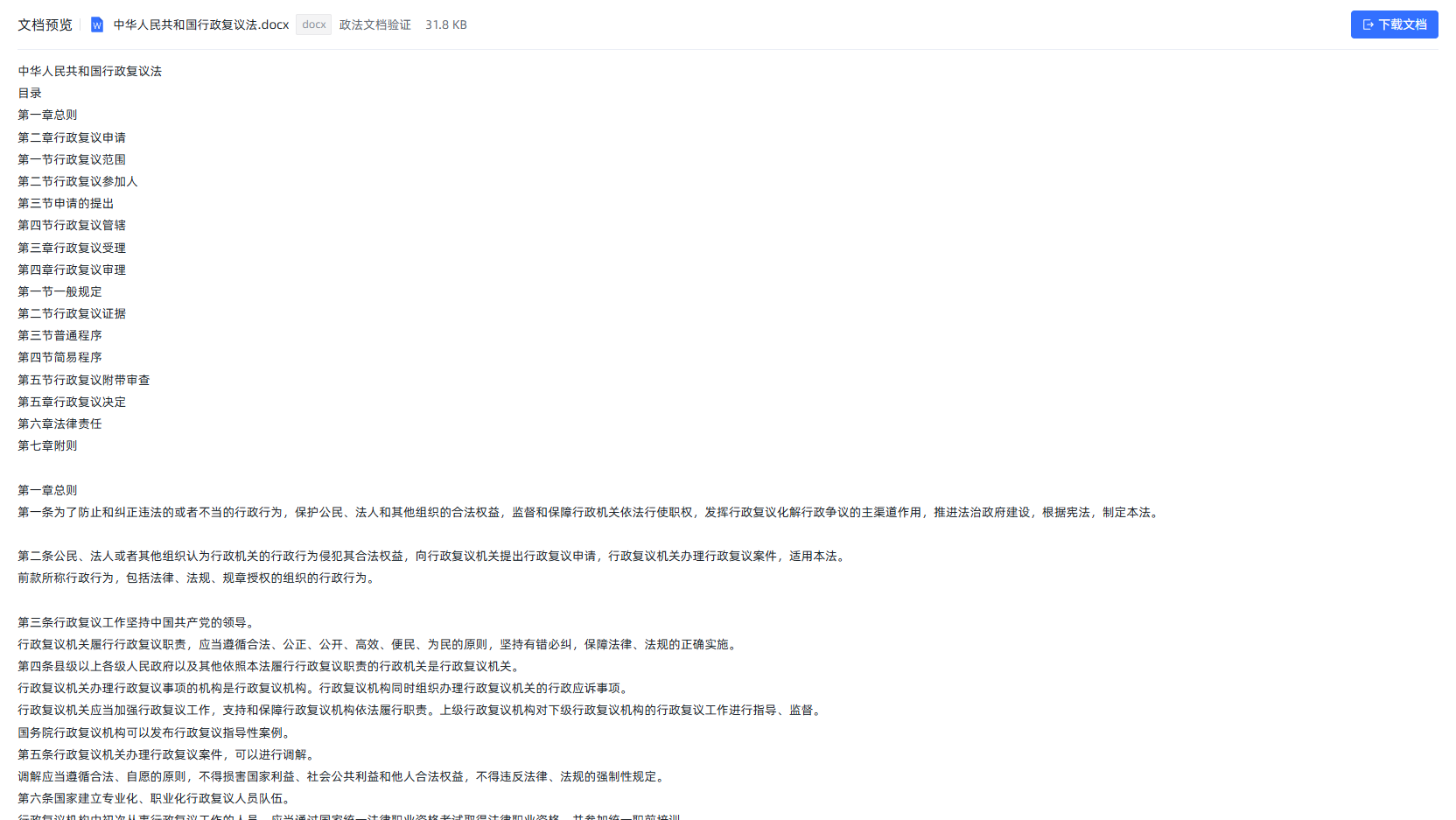
Office 文档在服务端解析成 HTML 片段,段落、表格、空行都保留下来,右上角「下载文档」直接保存原文件:
PDF 与图片不经过服务端解析,直接交给浏览器自己的阅读器,缩放、翻页、搜索都是原生能力:
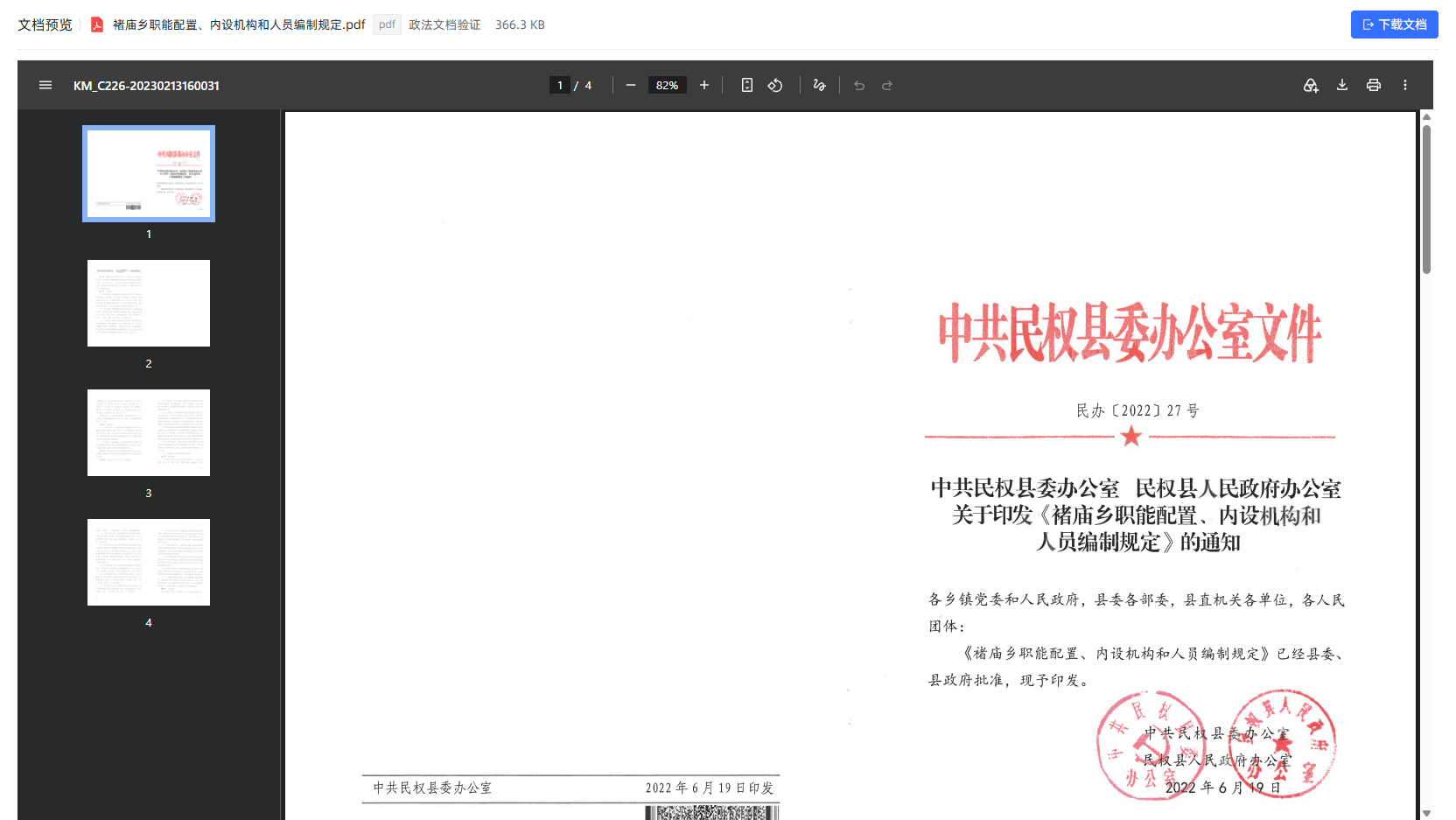
从点击到看到正文,新标签页里一共两次请求(PDF 与图片是三次,多一次取原文件):
sequenceDiagram
    participant U as 访客 / 应用作者
    participant D as 分段预览(原页面)
    participant P as 文档预览页(新标签页)
    participant B as 服务端
    U->>D: 点击文档名称或「预览全文」
    D->>P: window.open 新标签页
    P->>B: GET /api/application/{应用}/document/{文档}/preview_content
    B->>B: 校验文档属于该应用关联的知识库(不校验登录)
    B->>B: 定位原文件,按后缀决定预览方式
    B-->>P: 预览方式 + 正文(Office/表格转 HTML,文本原样返回)
    opt 预览方式是 pdf 或 image
        P->>B: GET /api/application/{应用}/document/{文档}/file
        B-->>P: 原文件字节流(Content-Disposition: inline)
        P->>P: 生成 blob 地址交给浏览器渲染
    end
    U->>P: 点击「下载文档」
    P->>B: GET …/file?download=true
B-->>P: 原文件字节流(Content-Disposition: attachment)二、预览方式与支持的文件类型
服务端只回答一个问题:这份文件用哪种方式给浏览器看。前端按 preview_kind 选一个渲染分支,不做后缀判断,新增类型只要服务端多一个分支。
| 后缀 | preview_kind | 呈现方式 |
|---|---|---|
pdf | pdf | 浏览器内置 PDF 阅读器,服务端只负责把原文件读出来 |
png jpg jpeg gif bmp webp svg | image | <img> 按容器宽度等比缩放 |
docx | html | 解析 OOXML 正文,段落转 <p>、表格转 <table>,文本统一转义 |
doc | html | 二进制 Word 逐段取文本后转 HTML |
xlsx xls | html | 每个工作表一张表格,前面带工作表名 |
csv | html | 按引号规则切分单元格后转表格 |
md markdown | markdown | 交给 Markdown 渲染器,标题、列表、表格都保留 |
txt log json xml yaml yml properties sql java js ts vue py sh bat ini conf | text | 等宽字体,保留换行与空格 |
html htm | web | 沙箱 iframe 渲染,页面里的脚本不会执行 |
zip | text | 包内文件清单(文件名 + 大小) |
| 其它后缀 | unsupported | 页面给出「请下载后查看」的提示,下载按钮仍然可用 |
| 原文件已被清理或文档来自网页抓取 | markdown | 退回该文档的全部分段正文,按分段顺序拼接 |
解析与呈现都在保护范围内,避免一份超大文档把浏览器拖垮:
| 限制 | 取值 | 说明 |
|---|---|---|
| 正文返回上限 | 200000 字符 | 超出后只返回前半部分,truncated 为真,页面顶部弹出提示条 |
| 参与解析的原文件大小 | 30 MB | 超过则直接进入只下载模式,不做解析 |
| 表格行列上限 | 2000 行 × 200 列 | 超出部分截断并置 truncated |
| ZIP 清单条数 | 500 条 | 超出后追加省略号 |
| 分段兜底条数 | 2000 个分段 | 原文件缺失时最多拼接的分段数 |
三、接口约定
两个接口都挂在应用维度,与分段预览共用同一套路径约定:
GET /api/application/{applicationId}/document/{documentId}/preview_content
GET /api/application/{applicationId}/document/{documentId}/file?download={true|false}| 参数 | 位置 | 必填 | 说明 |
|---|---|---|---|
applicationId | 路径 | 是 | 当前对话所属应用,用来校验文档是否属于该应用关联的知识库 |
documentId | 路径 | 是 | 文档 ID |
download | 查询串 | 否 | 缺省或 false 按 inline 输出供预览;true 或 1 按 attachment 输出触发下载 |
两个接口都不要求登录:没有 Authorization 头也能拿到内容。访问控制靠「应用 + 文档」这一对 ID:
  private static final String FIND_APPLICATION_DOCUMENT = """
      select d.id,
             d.name,
             d.type,
             d.file_id,
             d.dataset_id,
             d.char_length,
             d.paragraph_count,
             s.name as dataset_name
        from moss_kb_document d
        join moss_kb_application_dataset_mapping m on m.dataset_id = d.dataset_id
   left join moss_kb_dataset s on s.id = d.dataset_id
       where m.application_id = ?
         and d.id = ?
       limit 1
""";也就是说:只有确实挂在该应用关联知识库下的文档才会被读出来,随便换个 documentId 只会得到「文档不存在或不属于该应用的知识库」。文档 ID 是雪花算法生成的 64 位整数,无法猜测;预览链接只出现在对话页与分享出去的地址里。
preview_content 返回体在统一的 ResultVo 信封里,data 结构如下(Word 文档示例):
{
  "code": 200,
  "message": null,
  "data": {
    "document_id": "695639883218788352",
    "document_name": "中华人民共和国行政复议法.docx",
    "document_type": "docx",
    "dataset_id": "695638732989636608",
    "dataset_name": "政法文档验证",
    "paragraph_count": 8,
    "char_length": 13297,
    "file_name": "中华人民共和国行政复议法.docx",
    "file_size": 32517,
    "downloadable": true,
    "preview_kind": "html",
    "content": "<p>中华人民共和国行政复议法</p><p>目  录</p>…",
    "truncated": false,
    "message_code": null,
    "message": null
  }
}| 字段 | 说明 |
|---|---|
document_name / document_type | 文档名与后缀,前端据此取文件图标并决定标题栏文案 |
dataset_name | 知识库名,同名文档分布在不同知识库时用于区分 |
file_name / file_size | 原文件名与字节数,下载时作为保存文件名,页面显示为 31.8 KB |
downloadable | 原文件是否还在本地存储里;为 false 时下载按钮置灰 |
preview_kind | 预览方式,取值见上一节的表;前端按它选渲染分支 |
content | 解析后的正文;pdf 与 image 为 null,正文由 /file 提供 |
truncated | 是否因为上限只返回了部分正文 |
message_code | 无法预览的机器可读原因(目前只有 unsupported),由前端翻译成本地文案,页面语言是英文时不会冒出中文提示 |
message | 同一个原因的中文兜底文案,供不走界面的调用方直接使用 |
file 接口不返回 JSON,而是一段字节流,响应头由服务端拼好:
Content-Type: application/pdf
Content-Disposition: inline;filename=%E8%A4%9A%E5%BA%99%E4%B9%A1…pdf;filename*=UTF-8''%E8%A4%9A%E5%BA%99%E4%B9%A1…pdf文件名同时给出 filename(百分号编码)与 filename*(RFC 5987),中文名在下载时不会丢字。文档不存在或不属于该应用时返回 404,读盘失败返回 500,前端拿到的是失败状态,不会把错误 JSON 当成文件保存下来。
四、服务端实现
4.1 控制器方法
两个方法都只做三件事:接住路径变量、取查询串里的下载开关、交给服务层。tio-boot 的注解路由把路径变量直接绑到方法参数上,控制器里不需要手工解析 URL:
package nexus.io.mosskb.controller;

import nexus.io.annotation.Get;
import nexus.io.annotation.RequestPath;
import nexus.io.jfinal.aop.Aop;
import nexus.io.model.result.ResultVo;
import nexus.io.mosskb.service.kb.MossKbDocumentPreviewService;
import nexus.io.tio.http.common.HttpRequest;
import nexus.io.tio.http.common.HttpResponse;

@RequestPath("/api/application")
public class ApiApplicationController {

  /** 文档全文预览:按文件类型返回预览方式与正文,无原文件时退回分段正文;预览链接不需要登录。 */
  @Get("/{applicationId}/document/{documentId}/preview_content")
  public ResultVo previewDocumentContent(Long applicationId, Long documentId) {
    return Aop.get(MossKbDocumentPreviewService.class).content(applicationId, documentId);
  }

  /** 文档原文件:默认按 inline 输出用于在线预览,download=true 时按附件下载。 */
  @Get("/{applicationId}/document/{documentId}/file")
  public HttpResponse previewDocumentFile(Long applicationId, Long documentId, HttpRequest request) {
    String download = request.getParam("download");
    boolean asAttachment = "true".equalsIgnoreCase(download) || "1".equals(download);
    return Aop.get(MossKbDocumentPreviewService.class).file(applicationId, documentId, asAttachment, request);
  }
}4.2 预览链接不需要登录
默认情况下,认证拦截器先解析令牌,解不出身份就直接返回 401。文档预览要在没有登录态时也能打开,所以这两条路径在解析令牌之后立刻放行:
import java.util.regex.Pattern;

public class MossKbAuthInterceptor implements HttpRequestInterceptor {

  /**
   * 文档全文预览与下载原文件:预览链接不需要登录,按分享链接对待,
   * 能否看到内容由服务层按「文档是否属于该应用关联的知识库」判断。
   */
  private static final Pattern DOCUMENT_PREVIEW_PATH = Pattern
      .compile("/api/application/\\d+/document/\\d+/(preview_content|file)");

  @Override
  public HttpResponse doBeforeHandler(HttpRequest request, RequestLine requestLine, HttpResponse responseFromCache) {
    String authorization = request.getHeader("authorization");
    Long userId = Aop.get(MossKbAuthService.class).getIdByToken(authorization);
    String path = requestLine.getPath();

    // 文档预览按分享链接处理:没有登录令牌也放行,登录与否得到的结果一致。
    // 带了有效令牌时仍然记下身份,方便日志与审计。
    if (isDocumentPreviewPath(path)) {
      if (userId != null) {
        TioRequestContext.setUserId(userId);
      }
      return null;
    }

    if (userId == null) {
      HttpResponse response = TioRequestContext.getResponse();
      response.setStatus(HttpResponseStatus.C401);
      return response;
    }
    // …其余路径继续按登录令牌、账号状态与资源归属校验
    return null;
  }

  /** 文档预览与下载原文件的路径,这两个路径不要求登录。 */
  private boolean isDocumentPreviewPath(String path) {
    return DOCUMENT_PREVIEW_PATH.matcher(path).matches();
  }
}放行是在「解析令牌」之后、不是「跳过令牌」:带了有效令牌仍然会记下身份,日志和审计看得到是谁打开的。也正因为这条路径对所有人一视同仁,不会出现「登录之后反而没权限」这种怪事——服务层不再按身份判权,只看文档与应用的绑定关系。
分段预览 的 /preview 接口保持原样:它需要身份,因为返回的是全部分段正文,属于应用内部资料的完整展开;而文档预览页是给「拿到链接的人看这一份文档」用的,两者的边界在文档里写清楚。
4.3 三条 SQL
文档信息查询把三个条件叠在一条语句里:文档属于该应用关联的知识库、按文档 ID 命中、顺带取知识库名。SQL 用文本块书写,字段与条件各占一行,改条件时不会漏掉逗号:
  private static final String FIND_FILE = """
      select filename,
             bucket_name,
             target_name,
             file_size
        from moss_kb_file
       where id = ?
         and deleted = 0
      """;

  /** 分段没有单独的顺序列,主键由雪花算法递增生成,按主键升序即导入顺序。 */
  private static final String FIND_PARAGRAPHS = """
      select content
        from moss_kb_paragraph
       where document_id = ?
         and deleted = 0
       order by id
       limit ?
""";文档表只存 file_id,真实文件信息在文件表里,所以预览要多走一次查询。原文件落盘路径由存储桶名与目标名拼出来,与静态资源目录 server.resources.static-locations=pages 保持一致:
  /** 本地文件存储根目录,与静态资源目录 server.resources.static-locations 保持一致。 */
  private static final String FILE_ROOT = "pages";

  /** 原文件落盘路径:pages/{bucketName}/{targetName}。 */
  private Path storagePath(Row file) {
    String bucketName = file.getStr("bucket_name");
    String targetName = file.getStr("target_name");
    if (bucketName == null || targetName == null) {
      return null;
    }
    Path path = Paths.get(FILE_ROOT, bucketName, targetName).normalize();
    if (!path.startsWith(FILE_ROOT) || !Files.isReadable(path)) {
      return null;
    }
    return path;
}normalize() 加上 startsWith(FILE_ROOT) 是一次必要的兜底:即使将来 target_name 里出现 ../,路径也不会跑到 pages 目录外面去。
4.4 预览方式判定与分段兜底
预览方式由后缀决定,整段逻辑就是一次 switch,每个分支只关心「怎么把字节变成能看的内容」:
  /**
   * 按文件名后缀选择预览方式,返回 null 表示原文件不可读、由调用方退回分段正文。
   */
  private Preview extract(Path path, String documentName) {
    try {
      if (!Files.isReadable(path) || Files.size(path) == 0) {
        return null;
      }
      long size = Files.size(path);
      if (size > MAX_PARSE_BYTES) {
        return new Preview(KIND_UNSUPPORTED, null, false);
      }
      return switch (suffix(documentName)) {
        case "pdf" -> new Preview(KIND_PDF, null, false);
        case "png", "jpg", "jpeg", "gif", "bmp", "webp", "svg" -> new Preview(KIND_IMAGE, null, false);
        case "docx" -> html(docxToHtml(Files.readAllBytes(path)));
        case "doc" -> html(docToHtml(Files.readAllBytes(path)));
        case "xlsx", "xls" -> spreadsheetToHtml(Files.readAllBytes(path));
        case "csv" -> csvToHtml(readText(Files.readAllBytes(path)));
        case "md", "markdown" -> limited(KIND_MARKDOWN, readText(Files.readAllBytes(path)), false);
        case "html", "htm" -> limited(KIND_WEB, readText(Files.readAllBytes(path)), false);
        case "zip" -> limited(KIND_TEXT, zipListing(Files.readAllBytes(path)), false);
        default -> textLike(documentName) ? limited(KIND_TEXT, readText(Files.readAllBytes(path)), false)
            : new Preview(KIND_UNSUPPORTED, null, false);
      };
    } catch (Exception e) {
      log.warn("文档预览解析失败, path={}", path, e);
      return new Preview(KIND_UNSUPPORTED, null, false);
    }
}预览方式与结果都不写死在前端,而是作为数据返回,这是让「新增一种可预览类型」只改一处的前提。PDF 与图片返回 content = null,因为它们的正文就是原文件本身,服务端不需要读进内存再吐出来。
解析异常一律收敛成 unsupported,不会把 500 抛到前端:一份损坏的 DOCX 只是看不到正文,下载按钮照旧可用。
原文件缺失(网页抓取来的文档、文件被运维清理)时退回分段正文,让「文档全文」在任何情况下都有内容可看:
  /**
   * 原文件缺失时的兜底:把全部分段按顺序拼成 Markdown 正文,仍然看得到文档全文。
   */
  private Preview segments(Long documentId) {
    List<Row> records = Db.find(FIND_PARAGRAPHS, documentId, MAX_FALLBACK_PARAGRAPHS);
    StringBuilder text = new StringBuilder();
    boolean truncated = false;
    for (Row record : records) {
      String content = record.getStr("content");
      if (content == null || content.isBlank()) {
        continue;
      }
      if (text.length() + content.length() > MAX_PREVIEW_CHARS) {
        truncated = true;
        break;
      }
      text.append(content).append("\n\n");
    }
    if (text.length() == 0) {
      return new Preview(KIND_UNSUPPORTED, null, false);
    }
    return new Preview(KIND_MARKDOWN, text.toString(), truncated);
}主干方法把所有信息拼成给前端的 Kv,字段名与接口约定里的表一一对应:
  public ResultVo content(Long applicationId, Long documentId) {
    if (applicationId == null || documentId == null) {
      return ResultVo.fail("缺少应用或文档标识");
    }
    Row document = Db.findFirst(FIND_APPLICATION_DOCUMENT, applicationId, documentId);
    if (document == null) {
      return ResultVo.fail("文档不存在或不属于该应用的知识库");
    }

    Row file = file(document);
    Path path = file == null ? null : storagePath(file);
    Preview preview = path == null ? null : extract(path, document.getStr("name"));
    if (preview == null) {
      preview = segments(documentId);
    }

    Kv data = Kv.by("document_id", document.getLong("id"))
        .set("document_name", document.getStr("name"))
        .set("document_type", document.getStr("type"))
        .set("dataset_name", document.getStr("dataset_name"))
        .set("file_name", file == null ? null : file.getStr("filename"))
        .set("file_size", file == null ? null : file.getLong("file_size"))
        .set("downloadable", path != null)
        .set("preview_kind", preview.kind())
        .set("content", preview.content())
        .set("truncated", preview.truncated())
        .set("message_code", KIND_UNSUPPORTED.equals(preview.kind()) ? MESSAGE_CODE_UNSUPPORTED : null)
        .set("message", KIND_UNSUPPORTED.equals(preview.kind()) ? MESSAGE_UNSUPPORTED : null);
    return ResultVo.ok(data);
}4.5 Office 与表格转 HTML
DOCX 的正文在 word/document.xml 里,段落是 w:p、表格是 w:tbl、文本被拆在多个 w:t 中。解析器关掉 DOCTYPE 与外部实体,避免文档携带 XXE,然后按节点顺序还原结构:
import java.io.ByteArrayInputStream;
import java.util.zip.ZipEntry;
import java.util.zip.ZipInputStream;
import javax.xml.XMLConstants;
import javax.xml.parsers.DocumentBuilderFactory;
import org.w3c.dom.Document;
import org.w3c.dom.Element;
import org.w3c.dom.Node;
import org.w3c.dom.NodeList;

  /**
   * DOCX 正文转 HTML:段落转 p,表格转 table,文本统一做转义,避免文档内容被当成标签执行。
   */
  public String docxToHtml(byte[] data) throws Exception {
    try (ZipInputStream zip = new ZipInputStream(new ByteArrayInputStream(data))) {
      ZipEntry entry;
      while ((entry = zip.getNextEntry()) != null) {
        if (!"word/document.xml".equals(entry.getName())) {
          continue;
        }
        byte[] xml = zip.readNBytes(20 * 1024 * 1024 + 1);
        if (xml.length > 20 * 1024 * 1024) {
          throw new IllegalArgumentException("DOCX内容过大");
        }
        DocumentBuilderFactory factory = DocumentBuilderFactory.newInstance();
        factory.setNamespaceAware(true);
        factory.setFeature("http://apache.org/xml/features/disallow-doctype-decl", true);
        factory.setAttribute(XMLConstants.ACCESS_EXTERNAL_DTD, "");
        factory.setAttribute(XMLConstants.ACCESS_EXTERNAL_SCHEMA, "");
        Document doc = factory.newDocumentBuilder().parse(new ByteArrayInputStream(xml));
        Node body = doc.getElementsByTagNameNS("*", "body").item(0);
        if (body == null) {
          throw new IllegalArgumentException("DOCX缺少正文");
        }
        StringBuilder out = new StringBuilder();
        for (Node node = body.getFirstChild(); node != null; node = node.getNextSibling()) {
          if ("p".equals(node.getLocalName())) {
            appendParagraph(out, nodeText(node));
          } else if ("tbl".equals(node.getLocalName())) {
            out.append("<table class=\"preview-table\">");
            NodeList rows = ((Element) node).getElementsByTagNameNS("*", "tr");
            for (int r = 0; r < rows.getLength(); r++) {
              NodeList cells = ((Element) rows.item(r)).getElementsByTagNameNS("*", "tc");
              out.append("<tr>");
              for (int c = 0; c < cells.getLength(); c++) {
                out.append("<td>").append(escape(nodeText(cells.item(c)))).append("</td>");
              }
              out.append("</tr>");
            }
            out.append("</table>");
          }
        }
        return out.toString();
      }
    }
    throw new IllegalArgumentException("DOCX缺少正文");
  }

  /** 取节点下所有文本,DOCX 的文本可能被拆在多个 w:t 里。 */
  private String nodeText(Node node) {
    StringBuilder out = new StringBuilder();
    NodeList texts = ((Element) node).getElementsByTagNameNS("*", "t");
    for (int i = 0; i < texts.getLength(); i++) {
      out.append(texts.item(i).getTextContent());
    }
    return out.toString();
}生成的 HTML 是片段而不是整页:前端把它放进预览页正文容器,样式由前端控制,服务端不用关心主题色和字号。
Excel 走 POI 的统一工作簿接口,.xlsx 与 .xls 共用一条路径,DataFormatter 取「单元格显示出来的值」,公式单元格用缓存值,避免预览里出现 #VALUE!:
import java.util.Locale;
import org.apache.poi.ss.usermodel.Cell;
import org.apache.poi.ss.usermodel.DataFormatter;
import org.apache.poi.ss.usermodel.Sheet;
import org.apache.poi.ss.usermodel.Workbook;
import org.apache.poi.ss.usermodel.WorkbookFactory;

  /** 表格文档转 HTML 表格,超过行列上限时截断并标记。 */
  public Preview spreadsheetToHtml(byte[] data) throws Exception {
    try (Workbook workbook = WorkbookFactory.create(new ByteArrayInputStream(data))) {
      DataFormatter formatter = new DataFormatter(Locale.ROOT);
      formatter.setUseCachedValuesForFormulaCells(true);
      StringBuilder out = new StringBuilder();
      boolean truncated = false;
      for (Sheet sheet : workbook) {
        out.append("<h4>").append(escape(sheet.getSheetName())).append("</h4>");
        out.append("<table class=\"preview-table\">");
        int rows = 0;
        for (org.apache.poi.ss.usermodel.Row row : sheet) {
          if (rows >= MAX_TABLE_ROWS) {
            truncated = true;
            break;
          }
          rows++;
          int lastCell = row.getLastCellNum();
          if (lastCell > MAX_TABLE_COLUMNS) {
            truncated = true;
          }
          out.append("<tr>");
          for (int i = 0; i < Math.min(lastCell, MAX_TABLE_COLUMNS); i++) {
            Cell cell = row.getCell(i);
            out.append("<td>").append(escape(formatter.formatCellValue(cell))).append("</td>");
          }
          out.append("</tr>");
        }
        out.append("</table>");
      }
      return limited(KIND_HTML, out.toString(), truncated);
    }
}CSV 不能用 POI 读,但它只有一条规则:引号内的逗号不是分隔符,两个连续引号表示一个引号。一个小状态机就够了:
import java.util.ArrayList;
import java.util.List;

  /** 单个 CSV 行切分:引号内的逗号属于单元格内容,两个连续引号表示一个引号。 */
  public static List<String> splitCsvLine(String line) {
    List<String> cells = new ArrayList<>();
    StringBuilder cell = new StringBuilder();
    boolean quoted = false;
    for (int i = 0; i < line.length(); i++) {
      char current = line.charAt(i);
      if (current == '"') {
        if (quoted && i + 1 < line.length() && line.charAt(i + 1) == '"') {
          cell.append('"');
          i++;
        } else {
          quoted = !quoted;
        }
      } else if (current == ',' && !quoted) {
        cells.add(cell.toString());
        cell.setLength(0);
      } else {
        cell.append(current);
      }
    }
    cells.add(cell.toString());
    return cells;
}文本文件按 UTF-8 解码,失败再退回 GB18030。Windows 上大量公文仍是记事本另存的 GB18030 编码,只按 UTF-8 读会得到一串问号:
import java.nio.ByteBuffer;
import java.nio.charset.CharacterCodingException;
import java.nio.charset.Charset;
import java.nio.charset.StandardCharsets;

  /** 文本文件按 UTF-8 读取,乱码时退回 GB18030,覆盖 Windows 下常见的记事本文件。 */
  public static String readText(byte[] data) {
    try {
      return StandardCharsets.UTF_8.newDecoder().decode(ByteBuffer.wrap(data)).toString();
    } catch (CharacterCodingException e) {
      return new String(data, Charset.forName("GB18030"));
    }
}转义是这一段的硬要求:文档正文里的 <script> 必须以文本形式显示。所有来自文档的字符串都过同一个函数,前端才敢用 v-html 接住这段 HTML:
/** 文档正文里的 & < > " 必须转义,否则文档内容会被浏览器当成标签执行。 */
public static String escape(String text) {
if (text == null) {
return "";
}
return text.replace("&", "&").replace("<", "<").replace(">", ">").replace("\"", """);
}只有原始 HTML 文件例外,它的标签是要生效的,所以既不能转义也不能 v-html,而是交给下一节说的沙箱 iframe。
4.6 原文件输出与下载
原文件输出只做三件事:读字节、按后缀定 Content-Type、按 download 决定 inline 还是 attachment。tio-boot 的响应工具已经覆盖了常见类型,取不到的类型按二进制流返回:
import java.net.URLEncoder;
import java.nio.file.Files;
import java.nio.file.Path;
import java.nio.charset.StandardCharsets;
import nexus.io.tio.http.common.HeaderName;
import nexus.io.tio.http.common.HeaderValue;
import nexus.io.tio.http.common.HttpResponse;
import nexus.io.tio.http.common.HttpResponseStatus;
import nexus.io.tio.http.server.util.Resps;

  public HttpResponse file(Long applicationId, Long documentId, boolean download, HttpRequest request) {
    Row document = Db.findFirst(FIND_APPLICATION_DOCUMENT, applicationId, documentId);
    if (document == null) {
      return json(request, ResultVo.fail("文档不存在或不属于该应用的知识库"), HttpResponseStatus.C404);
    }
    Row file = file(document);
    Path path = file == null ? null : storagePath(file);
    if (path == null) {
      return json(request, ResultVo.fail("原文件不存在或已被清理"), HttpResponseStatus.C404);
    }
    try {
      byte[] bytes = Files.readAllBytes(path);
      String filename = document.getStr("name");
      HttpResponse response = Resps.bytesWithContentType(request, bytes, contentType(suffix(filename)));
      response.addHeader(HeaderName.Content_Disposition, HeaderValue.from(disposition(download, filename)));
      return response;
    } catch (Exception e) {
      log.warn("文档原文件读取失败, documentId={}, path={}", documentId, path, e);
      return json(request, ResultVo.fail("原文件读取失败"), HttpResponseStatus.C500);
    }
  }

  /** 预览用 inline,下载用 attachment;文件名按 UTF-8 百分号编码,兼容中文名。 */
  public static String disposition(boolean download, String filename) {
    String name = filename == null || filename.isBlank() ? "document" : filename;
    String encoded = URLEncoder.encode(name, StandardCharsets.UTF_8).replace("+", "%20");
    return (download ? "attachment" : "inline") + ";filename=" + encoded + ";filename*=UTF-8''" + encoded;
}为什么不让浏览器直接去静态资源目录取文件:pages 目录下的文件确实能通过 URL 直接访问,但那条路完全绕过接口——文档 ID 之所以难猜是因为它只出现在接口地址里,而静态路径一旦拼出来就是「谁都能拿」;而且静态资源不会带 Content-Disposition,下载下来的文件名是雪花 ID。走接口输出原文件,文档归属校验、中文文件名、预览与下载两种语义都能一次解决。代价是一次 Files.readAllBytes,对知识库文档这个量级完全可以接受。
失败时返回 404 / 500 而不是 200 包一个错误 JSON,是因为前端拿二进制流时无法解析业务错误码,只有非 2xx 才能被 axios 拦成异常。
4.7 预览结果对象与提示码
三处返回值汇总成一个不可变对象,避免在方法之间传三个变量:
  /** 预览结果:预览方式 + 正文 + 是否被截断。 */
  public record Preview(String kind, String content, boolean truncated) {
  }

  /** 无法在线预览时的提示码,由前端翻译成本地文案,服务端只给出机器可读的原因。 */
  public static final String MESSAGE_CODE_UNSUPPORTED = "unsupported";

  /** 提示码对应的中文兜底文案,供不走界面的调用方直接使用。 */
  private static final String MESSAGE_UNSUPPORTED = "该文件类型暂不支持在线预览,请下载后查看";

  /** 按字符上限截断正文,命中上限时由前端提示用户下载原文件查看。 */
  private Preview limited(String kind, String content, boolean truncated) {
    if (content != null && content.length() > MAX_PREVIEW_CHARS) {
      return new Preview(kind, content.substring(0, MAX_PREVIEW_CHARS), true);
    }
    return new Preview(kind, content, truncated);
}提示码与文案一起返回:界面拿 message_code 去查本地文案,非界面调用方(脚本、接口联调)直接读 message。
五、前端实现
5.1 新标签页打开
打开动作收在一个小工具里,三个入口共用;router.resolve 负责按路由名拼地址,避免手写路径:
import router from '@/router'

/**
 * 在新标签页打开文档预览页。
 *
 * 预览接口不需要登录,链接本身就是访问凭据,所以地址里只带应用与文档 ID:
 * 分享链接的访客和已登录用户打开的是同一个地址,登录与否结果一致。
 */
export function openDocumentPreviewTab(applicationId: string, documentId: string) {
  if (!applicationId || !documentId) {
    return
  }
  const path = `#/document-preview/${applicationId}/${documentId}`
  try {
    const { href } = router.resolve({
      name: 'DocumentPreview',
      params: { applicationId, documentId }
    })
    window.open(new URL(href, window.location.href).href, '_blank')
  } catch (e) {
    // 路由还没注册好时退回按路径拼地址,保证调用方(分段预览、知识库引用)不受影响
    window.open(new URL(path, window.location.href).href, '_blank')
  }
}window.open 必须由真实点击触发:浏览器会拦截「脚本自己弹出来的窗口」。分段预览与知识库引用里的入口都是用户点出来的,所以能正常开;如果哪天想改成页面加载后自动开,需要换成 location.href 或让用户手动点。
5.2 三个入口
分段预览弹窗的头部把文档名做成可点,并补一个带图标的「预览全文」按钮,避免用户看不出名称可以点:
<span
  class="segment-preview-name ellipsis-1"
  :title="$t('chat.documentPreview.clickTip')"
  @click="openDocumentPreview"
>
  {{ detail.document_name }}
</span>
<el-button type="primary" link class="ml-8" @click="openDocumentPreview">
  <AppIcon iconName="app-view" class="mr-4"></AppIcon>
  {{ $t('chat.documentPreview.previewFullText') }}
</el-button>/** 点击文档名称或「预览全文」按钮,在新标签页打开文档预览页。 */
function openDocumentPreview() {
if (!currentApplicationId || !detail.value.document_id) {
return
}
openDocumentPreviewTab(currentApplicationId, detail.value.document_id)
}currentApplicationId 在打开分段预览时记下来,因为预览接口需要应用 ID 做归属校验,而分段预览的响应里只回文档信息。
「知识库引用」弹窗里的文档名称同样可点。应用 ID 从 KnowledgeSource 逐层传下去,不引入全局状态:
<!-- KnowledgeSource.vue:把应用 id 交给引用弹窗 -->
<ParagraphSourceDialog ref="ParagraphSourceDialogRef" :application-id="application?.id" />

<!-- ParagraphSourceDialog.vue:再交给每一张引用分段卡片 -->
<ParagraphCard :data="item" :content="item.content" :index="index" :application-id="props.applicationId" /><!-- ParagraphCard.vue:文档名称变成入口,正文与相似度都不受影响 -->
<span
class="paragraph-source-document-name cursor ellipsis-1 break-all"
:title="data?.document_name?.trim()"
@click="openDocumentPreview"
>
{{ data?.document_name?.trim() }}
</span>/** 点击文档名称在新标签页打开文档预览页。 */
function openDocumentPreview() {
openDocumentPreviewTab(props.applicationId, props.data?.document_id)
}对话来源卡片上的文档名刻意保持不可点:那张卡片很小,文档名几乎占满整张卡,名称一旦单独接管点击,用户点卡片就会「莫名其妙跳到预览页」,把原本的分段预览入口挤掉。所以点击优先级是:卡片 → 分段预览;分段预览头部 / 知识库引用里的名称 → 文档预览。
5.3 预览页与渲染分支
预览页是独立路由,不带后台布局,进来就是一个整屏的查看器:
// routes.ts
  // 文档预览:从分段预览或知识库引用里新开标签页打开,独立成页而不是弹窗
  {
    path: '/document-preview/:applicationId/:documentId',
    name: 'DocumentPreview',
    meta: { title: 'chat.documentPreview.title' },
    component: () => import('@/views/document-preview/index.vue')
}<template>
<div class="document-preview-page">
<DocumentPreview :application-id="applicationId" :document-id="documentId" />
</div>
</template>路由表里的菜单文案一律走 $t(...),所以 meta.title 给的是 i18n 键而不是写死的中文;页面主体按 preview_kind 选渲染分支,同一份数据在不同分支下用完全不同的方式呈现:
<div class="document-preview-header flex align-center">
  <span class="document-preview-title">{{ $t('chat.documentPreview.title') }}</span>
  <el-divider direction="vertical" class="mr-8" />
  <img v-if="detail.document_name" :src="getImgUrl(detail.document_name)" alt="" width="20" class="mr-8" />
  <span class="document-preview-name ellipsis-1" :title="detail.document_name">{{ detail.document_name }}</span>
  <el-tag v-if="detail.document_type" class="ml-8" size="small" type="info">
    {{ detail.document_type }}
  </el-tag>
  <span class="ml-8 color-secondary ellipsis-1" :title="detail.dataset_name">{{ detail.dataset_name }}</span>
  <span v-if="fileSizeText" class="ml-16 color-secondary">{{ fileSizeText }}</span>
  <div class="document-preview-space"></div>
  <el-button type="primary" :disabled="!detail.downloadable" :loading="downloading" @click="downloadDocument">
    <AppIcon iconName="app-export" class="mr-4"></AppIcon>
    {{ $t('chat.documentPreview.download') }}
  </el-button>
</div>
<el-alert
  v-if="detail.truncated"
  class="mb-8"
  type="warning"
  :closable="false"
  :title="$t('chat.documentPreview.truncated')"
/>
<div class="document-preview-body">
  <iframe v-if="previewKind === 'pdf'" :src="previewUrl" class="document-preview-frame" />
  <div v-else-if="previewKind === 'image'" class="document-preview-image">
    <img :src="previewUrl" alt="" />
  </div>
  <!-- 原始 HTML 文件不做任何处理,放进沙箱 iframe,页面里的脚本不会执行 -->
  <iframe v-else-if="previewKind === 'web'" :srcdoc="detail.content" sandbox="" class="document-preview-frame" />
  <!-- 服务端已经对文档正文做过转义,这里的 HTML 是表格与段落片段 -->
  <div v-else-if="previewKind === 'html'" class="document-preview-html" v-html="detail.content"></div>
  <MdPreview
    v-else-if="previewKind === 'markdown'"
    editorId="document-preview"
    :modelValue="detail.content"
    noImgZoomIn
  />
  <pre v-else-if="previewKind === 'text'" class="document-preview-text">{{ detail.content }}</pre>
  <el-empty v-else-if="!loading" :description="emptyText" />
</div>web 分支的 sandbox="" 是关键:原始 HTML 文件里的 <script> 不会执行,也拿不到同源权限,但它自己的样式和内联图片照常显示。html 分支敢用 v-html,是因为服务端已经把文档文本全部转义过。
正文容器用 flex 撑满剩余高度,PDF 与图片因此能占满整屏:
.document-preview {
  display: flex;
  flex-direction: column;
  height: 100%;
}

.document-preview-body {
  flex: 1;
  min-height: 0;
  padding-top: 12px;
  overflow: auto;
}

.document-preview-frame {
  width: 100%;
  height: 100%;
  border: none;
}PDF 与图片需要原文件本身,取回二进制后生成 blob 地址;地址在页面卸载时释放,避免反复打开预览把内存攒起来。用 axios 取二进制而不是把 URL 直接写进 <iframe src>,是因为接口虽然不要求登录,但带着令牌请求才能让服务端日志记下访问者:
/** PDF、图片需要原文件本身,取回二进制后生成浏览器可直接打开的地址。 */
function loadBinaryPreview() {
  const kind = (detail.value.preview_kind || '').toLowerCase()
  if (kind !== 'pdf' && kind !== 'image') {
    return
  }
  applicationApi
    .getDocumentFile(props.applicationId, props.documentId, false)
    .then((blob: any) => {
      if (blob instanceof Blob) {
        previewUrl.value = window.URL.createObjectURL(blob)
      }
    })
    .catch(() => {
      MsgError(t('chat.documentPreview.loadFailed'))
    })
}5.4 下载
下载与预览共用同一个接口,只差一个 download=true:
function downloadDocument() {
  if (!detail.value.downloadable) {
    return
  }
  downloading.value = true
  applicationApi
    .getDocumentFile(props.applicationId, props.documentId, true)
    .then((blob: any) => {
      if (blob instanceof Blob) {
        saveAs(blob, detail.value.file_name || detail.value.document_name)
      }
    })
    .catch(() => {})
    .finally(() => {
      downloading.value = false
    })
}file_name 是服务端给的原文件名(带后缀),比直接用文档名更稳:文档名被改成不带上缀时,下载下来的文件仍然能被系统识别。
5.5 国际化
预览页的所有文案都走 i18n,三套语言各补一份;服务端只回提示码,页面用提示码查本地文案,英文界面不会冒出中文:
  documentPreview: {
    title: '文档预览',
    clickTip: '点击预览文档全文',
    previewFullText: '预览全文',
    download: '下载文档',
    truncated: '文档内容较大,仅展示部分内容,可下载原文件查看',
    unsupported: '该文件类型暂不支持在线预览,请下载后查看',
    loadFailed: '原文件加载失败',
    message: {
      unsupported: '该文件类型暂不支持在线预览,请下载后查看'
    }
},const { t, locale } = useI18n({ useScope: 'global' })
/** 无法预览时的提示:服务端只给原因码,文案由界面语言决定。 */
const emptyText = computed(() => {
if (detail.value.message_code) {
return t(`chat.documentPreview.message.${detail.value.message_code}`)
}
return detail.value.message || t('chat.documentPreview.unsupported')
})
/**
* 新标签页的标题用文档名,方便在多个预览页之间切换;
* 文档信息还没回来时用当前界面语言的「文档预览」,语言切换后标题会跟着更新。
*/
watch(
[() => detail.value.document_name, locale],
() => {
document.title = detail.value.document_name || t('chat.documentPreview.title')
},
{ immediate: true }
)浏览器标签页标题优先用文档名(它本身不随语言变化),文档信息还没回来时退回当前语言的「文档预览」;locale 放进 watch 的依赖里,切换语言时标题会跟着刷新。
5.6 路由放行
预览页由对话页新开标签页打开,此时 Pinia 里没有身份,路由守卫不能按登录用户拦:
    const { user } = useStore()
    // 文档预览页由对话页新开标签页打开,它的两个接口本身不要求登录,不能按登录用户拦。
    const notAuthRouteNameList = [
      'register',
      'login',
      'forgot_password',
      'reset_password',
      'Chat',
      'DocumentPreview'
]后端这两条接口本身也不校验登录,前端因此不需要在地址里带任何令牌,链接可以直接复制给别人。
六、服务端解析单元测试
后缀到预览方式的映射、Office 与表格转 HTML、转义规则都是纯函数,用单元测试覆盖最划算,不需要起服务也不需要数据库:
import static org.junit.Assert.assertEquals;
import static org.junit.Assert.assertFalse;
import static org.junit.Assert.assertTrue;
import java.io.ByteArrayOutputStream;
import java.nio.charset.StandardCharsets;
import java.util.List;
import java.util.zip.ZipEntry;
import java.util.zip.ZipOutputStream;
import org.junit.Test;
public class MossKbDocumentPreviewServiceTest {
@Test
public void docxPreviewKeepsParagraphsAndTablesInOrder() throws Exception {
String xml = "<w:document xmlns:w='urn:test'><w:body>"
+ "<w:p><w:r><w:t>第七十七条</w:t></w:r></w:p>"
+ "<w:tbl><w:tr><w:tc><w:p><w:r><w:t>申请期限</w:t></w:r></w:p></w:tc>"
+ "<w:tc><w:p><w:r><w:t>六十日</w:t></w:r></w:p></w:tc></w:tr></w:tbl>"
+ "</w:body></w:document>";
String html = new MossKbDocumentPreviewService().docxToHtml(docx(xml));
assertTrue(html.contains("<p>第七十七条</p>"));
assertTrue(html.contains("<table class=\"preview-table\">"));
assertTrue(html.indexOf("第七十七条") < html.indexOf("申请期限"));
}
/** 文档正文里的尖括号必须转义,否则预览会把文档内容当成标签执行。 */
@Test
public void docxPreviewEscapesDocumentText() throws Exception {
String xml = "<w:document xmlns:w='urn:test'><w:body>"
+ "<w:p><w:r><w:t><script>alert(1)</script></w:t></w:r></w:p>"
+ "</w:body></w:document>";
String html = new MossKbDocumentPreviewService().docxToHtml(docx(xml));
assertTrue(html.contains("<script>"));
assertFalse(html.contains("<script>"));
}
@Test
public void csvPreviewHandlesQuotedCells() {
MossKbDocumentPreviewService.Preview preview = new MossKbDocumentPreviewService()
.csvToHtml("名称,说明\n\"行政复议,申请\",\"含\"\"引号\"\"\"\n");
assertTrue(preview.content().contains("<td>行政复议,申请</td>"));
// 单元格里的双引号属于正文,输出 HTML 时按实体转义。
assertTrue(preview.content().contains("<td>含"引号"</td>"));
}
private byte[] docx(String xml) throws Exception {
ByteArrayOutputStream out = new ByteArrayOutputStream();
try (ZipOutputStream zip = new ZipOutputStream(out)) {
zip.putNextEntry(new ZipEntry("word/document.xml"));
zip.write(xml.getBytes(StandardCharsets.UTF_8));
zip.closeEntry();
}
return out.toByteArray();
}
}七、验收
| 场景 | 期望 | 实测 |
|---|---|---|
| 分段预览 | 点对话来源卡片仍然弹出分段预览,命中分段高亮并可滚动定位 | 通过(本次改动后重新回归) |
| 分段预览头部入口 | 点文档名称或「预览全文」在新标签页打开预览页 | 通过 |
| 知识库引用入口 | 引用分段卡片上的文档名称在新标签页打开预览页 | 通过 |
| 无需登录 | 清空浏览器全部登录令牌后直接打开预览地址,正文正常渲染 | 通过 |
| 无需登录(下载) | 同一状态下点「下载文档」,/file?download=true 返回 200 | 通过 |
Word(.docx) | 页面按原文顺序渲染段落与表格,头部显示类型、知识库、文件大小 | 通过 |
| 浏览器内置阅读器,可翻页、缩放、搜索 | 通过 | |
纯文本(.txt) | 等宽字体保留换行,中文不乱码 | 通过 |
| CSV | 转成表格,引号包裹的逗号不被拆列 | 通过 |
| 文档归属校验 | 换个不属于该应用的文档 ID,返回「文档不存在或不属于该应用的知识库」 | 通过 |
| 原文件缺失 | 退回分段正文(preview_kind=markdown),downloadable=false,下载按钮置灰 | 通过 |
| 国际化 | 界面切到英文时页面标题为 Document Preview、按钮为 Download,提示文案不出现中文 | 通过 |
| 单元测试 | 解析与转义用例全绿 | 通过 |
未在界面里逐一截图的两类:Excel 与 ZIP 清单,与 Word 共用同一段转换逻辑,由单元测试覆盖;扫描件 PDF 不需要额外处理,PDF 分支直接展示原文件,预览不再触发 OCR,这也是把 PDF 交给浏览器渲染的另一个好处。